
.avif)
_edited.png)
AV Presentation Software Explained for Live Events

You're in the room already, or at least your laptop is open and the show file is on the screen. The sponsor reel is queued, the keynote deck is next, and someone in the back is asking for the video clip to roll one more time. Then the playback stutters, the presenter clicks through to a PDF in another app, and the room feels the pause before anyone says a word.
That is the genuine test of AV presentation software. Not how pretty the slide master looks, not how many transitions it offers, but whether the show keeps moving when the pressure is on. For AV technicians, event producers, trainers, and signage managers, the job is the same, keep mixed media flowing in the right order, on the right screen, without a visible hitch.
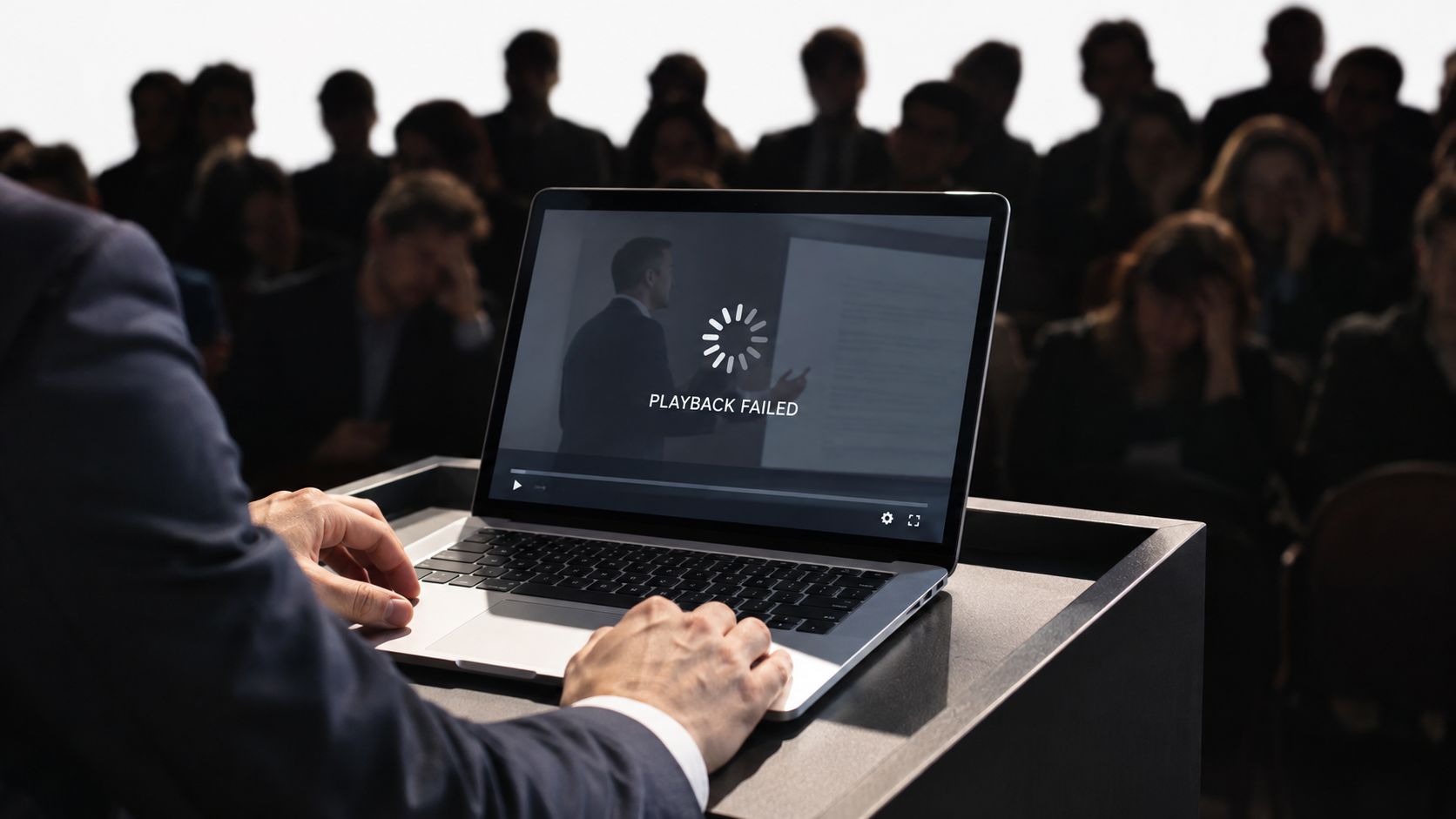
The simplest way to think about it is this. Presentation software for desktop design helps you build the content, but AV presentation software helps you deliver the show. In live work, that difference decides whether the audience sees a smooth program or a string of technical resets.
Table of Contents
What AV Presentation Software Really Does - Why the single playlist matters - What the job to be done really is
How Mixed Media Playback Reduces Manual Conversions - Direct playlist assembly versus conversion-heavy workflow
Integrating Playback With Your AV System - Single app or multiple apps
Reliability Best Practices for Live and Unattended Playback - Preflight beats recovery - Rehearsal habits that save shows
Real World Applications and Practical Examples - Where the workflow pays off
Choosing AV Presentation Software Beyond Feature Lists - What buyers often miss
Introduction Why Live Shows Forgive Nothing
Live events punish every weak link. A speaker advances to the wrong file, a codec doesn't load, or a video launches in a separate player and steals focus from the room. Once that happens, the audience stops following the message and starts watching the operator.
That's why the most useful mental model is not “slide software,” it's show-delivery infrastructure. The software needs to behave like part of the playback chain, not like a document editor that happens to show media. When it does, the audience experiences one continuous program, even if the show contains videos, audio beds, PDFs, and Office files.
This matters across a lot of settings. A conference producer needs one flow for keynotes and sponsor reels. A trainer needs to move between slides and product demos without reloading tools. A retail signage manager needs content that can loop for hours without someone babysitting it.
The market is pointing in that direction too. The global presentation software market is estimated at USD 8,597.9 million in 2026 and is expected to reach USD 21,382.4 million by 2033, with a 13.9% CAGR from 2026 to 2033 (Coherent Market Insights). That forecast does not just describe a bigger slide-deck market. It also reflects demand for cloud-based platforms, cross-device workflows, collaboration, automation, and more flexible presentation environments.
If you're choosing tools, it also helps to understand the people behind them. For a practical overview of the skills and pay structure around this work, AV engineer salary 2026 is a useful companion read.
Practical rule: if a tool can't keep the room moving without app-hopping, it's not ready for live playback.
What AV Presentation Software Really Does
Think of a document editor as a writing desk. You can draft, revise, and format, but it isn't built to run a broadcast. AV presentation software is closer to a playout system. You load the assets, arrange the sequence, validate the order, and press play with the expectation that every item will appear in the right moment and the right format.
The practical job is straightforward. It should play video, audio, images, PDFs, and Office documents in one uninterrupted playlist, preferably in full screen, without making the operator bounce between separate tools. That single flow changes prep work because the presenter or technician can build one sequence instead of coordinating multiple windows and manual handoffs.
Why the single playlist matters
A single playlist is not just cleaner, it changes how you think about the show. You can line up a keynote opener, a product demo clip, a PDF handout, and a closing slide without turning the room into a desktop tour. For rehearsal, that means fewer “which app was that in?” moments and less time rebuilding context after each switch.
Searches for AV tools often focus on layout and slide design, but the operational value is more basic. The software has to behave like a cue list, where each item is ready before it's needed. If the workflow supports drag-and-drop sequencing with preview, you can verify the order before anyone walks on stage, which is the kind of quiet discipline that saves shows.
If you want a broader software-selection perspective, the roundup at MediaGun's guide to combining videos, images, PDFs, and MS Office in one multimedia presentation is a useful reference point.
What the job to be done really is
AV presentation software exists to keep a live audience from noticing the machinery. It should reduce file juggling, keep content visible in one consistent interface, and help the operator trust the next cue. That's the difference between presentation design and presentation delivery.
A good playback workflow feels boring in the best way. Nothing unexpected happens, and the audience stays with the content instead of the control room.
How Mixed Media Playback Reduces Manual Conversions
A presenter arrives with a deck, a video refuses to play, and the show clock keeps moving while someone checks codecs. Another operator re-encodes the file, then the team tests it again. Each manual conversion adds a new failure point, especially when the same asset must work through rehearsal and live playback.
Modern AV presentation software reduces that work by letting operators assemble mixed-format playlists more directly. Microsoft’s current guidance recommends MP4 with H.264 video and AAC audio. Newer PowerPoint versions limit or deprecate legacy formats such as WMV, AVI, MOV, and MPEG-2, as described in Microsoft support. Direct playlist assembly keeps the production workflow focused on validating the show rather than repeatedly rebuilding its assets.
Direct playlist assembly versus conversion-heavy workflow
A conversion-heavy workflow turns every format mismatch into a production task. The operator exports, tests, finds a problem, converts the file, and tests again. A mixed-format playlist workflow reduces that burden by letting the operator add supported files directly to the show sequence, while the software handles certain display requirements where needed.
That distinction matters. For example, MediaGun can assemble videos, audio, images, PDFs, and Office documents into one playlist, but Office files have specific handling rules. With an internet connection, MS Office files are automatically uploaded and converted for display; for offline playback and Solo Mode, PowerPoint, Word, and Excel files are converted to PDF. The practical benefit is not that conversion never happens. It is that the operator does not have to manage every conversion manually before building the show.
Direct playback still requires discipline. For unattended playback, use a single, prevalidated playlist made from locally available assets and a widely supported container such as H.264 MP4 where video compatibility is important.
The Digital Signage file formats guide notes that codec problems can appear as black-screen failures and recommends re-encoding problematic files to H.264. Standardisation therefore gives the operator a known baseline before the room is unattended.
A trainer’s session makes the difference easy to see. If a video, PDF, deck, or handout can be added to the presentation environment and tested without manually rebuilding the asset first, the team removes several opportunities for drift. The workflow becomes a controlled chain: add the asset, preview it, place it in the cue order, and confirm that it plays on the show machine.
For a broader reference on combining videos, images, PDFs, and office files, see MediaGun's guide to multimedia presentation assembly.
Operational takeaway: reduced manual conversion matters when one file must survive rehearsal, a second rehearsal, and the actual show.
Integrating Playback With Your AV System
AV presentation software doesn't live by itself. It has to sit inside a real chain that may include a projector, an LED wall, a switcher, an audio console, and networked displays. The right question isn't “Can it open a file?”, it's “Can it behave predictably inside my signal flow and my content pipeline?”
A useful integration test starts with platform parity. If your team works across Windows, macOS, and Linux, the workflow should feel similar enough that operators aren't relearning the system every time they change machines. Media access also matters. When cloud-synced folders are mounted through the operating system's file explorer, the software can draw from the same local file structure the rest of the show computer uses, which makes the workflow easier to support on site.
Single app or multiple apps
The application count affects speed, and not just at the beginning. Workers in one large study toggled between apps and websites nearly 1,200 times per day, with the switching cost adding up to just under four hours per week, or about 9% of annual work time, in reorientation overhead (Microsoft Research). Atlassian also summarizes research showing it can take up to 9.5 minutes to get back into productive flow after app switching, and 45% of people say context switching makes them less productive (Atlassian).
That's why a single-interface playback workflow often wins in live settings. If the host jumps from a slide deck to a media player and then to a PDF viewer, each handoff creates another moment where the room can feel the operator working. A consolidated playlist removes that tax by keeping the visible interface constant.
Workflow Factor | Single Playlist App | Multiple Apps Switching |
|---|---|---|
Show continuity | One visible flow from cue to cue | Handoffs can interrupt pacing |
Rehearsal speed | Faster to review one sequence | More time spent checking each app |
Error surface | Fewer chances to lose context | More chances to miss a file or window |
Live confidence | Operators stay in one control layer | Operators manage more moving parts |
Best fit | Conferences, loops, training, signage | Loose ad hoc content review |
If you're comparing tools for service teams, the discussion at MediaGun's multimedia presentation software for AV services guide is relevant because it frames playback as a systems problem, not a slide problem.
Reliability Best Practices for Live and Unattended Playback
The biggest live failures usually aren't dramatic. They're small, preventable things, a missing file, a renamed folder, a drive that wasn't attached, or a last-minute video that was never tested on the show computer. Reliability is mostly about proving that the playlist will run before the audience arrives.
Preflight beats recovery
Build the habit of checking file paths before showtime. Confirm that every asset is still where the playlist expects it, and verify that no clip was moved, renamed, or left on a disconnected drive. Predictive validation matters, because a tool that checks availability early gives you time to fix the problem while the room is still empty.
Local assets also reduce risk. If the media sits on the show machine instead of a network source, you remove another layer of uncertainty. Standardizing on H.264 MP4 helps too, because one format is much easier to trust than a collection of files that each depend on different playback assumptions.
Rehearsal habits that save shows
A good preview panel is worth more than a polished interface. If you can see how each item will look and play before it enters the sequence, you can catch framing issues, wrong aspect ratios, or the wrong version of a deck without learning about them on stage. Drag-and-drop reordering also matters, because agenda changes happen late, and the software should let you adjust the order without rebuilding the whole show.
Validate the sequence on the target hardware, not on the editing laptop. That one habit catches a surprising number of show-day surprises.
For unattended playback, continuous loop modes are the practical choice. Trade show booths, retail displays, and long-duration signage need a sequence that can keep running without an operator hovering nearby. The backstage view with Media Boxes helps here because it lets technicians assemble and reshuffle content quickly while keeping the playback logic organized.
If you want a fast checklist, use this on every show file:
Validate file paths: check every link before load-in.
Verify assets: make sure nothing is missing, renamed, or moved.
Store media locally: keep show assets on the playback computer whenever possible.
Keep a backup source: carry a duplicate copy on external media or in a second trusted location.
Run full playback once: test the whole sequence end to end before doors open.
For a troubleshooting companion, the article at MediaGun's guide to multimedia presentation problems and fast fixes is a practical next stop.
Real World Applications and Practical Examples
A multi-speaker conference is the easiest place to see the difference between slide software and playback software. The production team might need to move from an intro loop to a keynote deck, then into sponsor content, then back to speaker slides without touching three separate applications. With a unified playlist, that handoff feels like one program instead of three disconnected tasks.
A trade show booth has a different problem. The content often runs all day, and nobody wants to stand there babysitting a video player. A continuous loop with preloaded media keeps the booth alive while staff talk to prospects instead of managing screens.
For corporate learning teams, the benefit shows up in rehearsal. A trainer can move from a slide to a product demo clip to a PDF handout without the awkward pause of opening a different tool. That makes the session feel tighter, and it gives the facilitator more room to respond to the room instead of fighting the software.
Where the workflow pays off
Sales presenters feel this in last-minute prep. A deck can change minutes before a pitch, but if the assets live in one playlist and the order can be changed by drag-and-drop, the presenter spends less time rebuilding and more time practicing the delivery. Retail and hospitality teams get a different advantage, unattended display content can run reliably because the sequence was validated in advance and built for continuous playback.
A quick way to judge the fit is to ask what breaks first when the clock gets tight. If the answer is “switching apps,” “searching for the right file,” or “re-exporting media,” then the workflow still treats playback like office work. If the answer is “nothing visible happens,” then the infrastructure is doing its job.
Choosing AV Presentation Software Beyond Feature Lists
Feature lists are easy to compare and hard to trust. What matters more is whether the software can support the kinds of shows you run, including accessibility checks, governance, and long-term operational continuity. Those are the parts many roundups skip, even though they're the parts that decide whether a tool stays in your stack.
Accessibility for mixed media is a strong selection criterion. Slide titles, color contrast, keyboard operability, captions, transcripts, and reduced-motion handling all matter when video and audio are part of the presentation flow. The guidance at Section 508 presentations makes clear that accessibility doesn't stop at the slide image, it extends to the media and the workflow around it.
What buyers often miss
The second blind spot is governance. In unattended or hybrid AV environments, buyers care about interoperability, security, uptime, and lifecycle management, not just prettier decks. Recent Pro AV coverage points toward broadcast-grade workplaces, AI-assisted production, open API-driven models, and more attention to networked AV continuity, which lines up with how event, retail, and signage teams now operate (Kiosk Industry Pro AV coverage).
That changes the shortlist. A serious comparison should include licensing terms, trial access, minimum system requirements, support resources, and the ability to confirm behavior before rollout. MediaGun Ltd is one option in that category, because MediaGun 2.0 is a cross-platform multimedia presentation application for Windows, macOS, and Linux that assembles and plays mixed media in one uninterrupted playlist.
If you also want to compare live playback software with video-first training tools, this overview of presentation video software for 2026 provides useful adjacent context.
Conclusion Your Next Show Starts Before Showtime
Playback without interruption comes from preparation, not luck. Treat AV presentation software as show-delivery infrastructure: validate every asset, confirm the playback path, and check the system before the audience enters. Broad format support, one continuous playlist, predictable integration, and preflight checks matter more than decorative menus.
Choose software that keeps the show in one dependable flow, verifies that files are ready, and supports the hardware you will deploy. Rehearse the complete sequence on the target machine, because a file or transition that works on a workstation may behave differently at the venue.
A validated playlist and tested hardware give operators room to handle a tight agenda. This standard applies to live events, training sessions, and unattended displays.
MediaGun Ltd develops MediaGun 2.0 for mixed-media playback across Windows, macOS, and Linux in one uninterrupted playlist. Teams whose events use video, audio, PDFs, and Office files can visit MediaGun Ltd to review the product, support materials, and trial options.

Comments