


Media Playback Software: Formats, Stability and Loops

The doors are open, the room is filling, and your laptop is showing a desktop instead of the sponsor reel. Someone renamed a file, someone else sent a new cut, and the machine that played everything in rehearsal is now plugged into a different screen. That's the moment media playback software stops being a utility and becomes an operations decision. This guide treats it that way, with formats, failure points, and a preflight routine you can run before an audience sees a problem.
Table of Contents
What Media Playback Software Does on Show Day - The Stage Manager Analogy
Formats a Playback Tool Should Read Natively - Reading the Risk Column - Documents Carry Their Own Traps
How a Player Reads a File and Why Systems Disagree - What Cross Platform Testing Shows
Keeping Playback Smooth Under Load - How to Use the Table - Buffer Discipline Beats File Presence
Running Continuous Loops for Hours Unattended - Local Files Beat Streams for Resilience - Backup Tiers for Playback
How to Run a Preflight Check Before Every Show - Why Checksums Earn Their Place
What Media Playback Software Does on Show Day
Say a keynote sponsor reel stalls five minutes after it arrived by email. It's sitting in Downloads instead of the show folder, the laptop is juggling mail, chat, and a browser, and the file needs more decoding power than the machine can spare. The audience doesn't see a codec problem. They see a frozen screen and a presenter waiting.
Media playback software is the application that opens, decodes, and sequences video, audio, images, and documents in one continuous session. It removes the need to hop between a video player, an image viewer, a PDF reader, and an Office app between cues. Each switch costs seconds and invites a wrong window, a notification, or a file opening at the wrong size.
The Stage Manager Analogy
A good player works like a stage manager. It reads every cue in whatever format it arrives, holds the order, and routes each item to the right output at the right moment. The operator presses one control instead of hunting through folders while the room watches.
That job matters because playback rarely means opening one file anymore. PQ Media reported that global consumer media usage rose 2.4% in 2024 to an average of 57.2 hours per week across digital and traditional channels, according to the PQ Media consumer media usage report. That figure measures consumption rather than desktop software use. It still explains the working reality, long, scheduled, often unattended playback in rooms, booths, and public displays.
What follows is practical. You'll get a format reference, an explanation of why identical looking files fail on different machines, guidance on smooth playback and long loops, and a preflight routine to catch faults before showtime.
Formats a Playback Tool Should Read Natively
Most modern formats should open natively, without a pre-export step. A capable player reads common video containers, the codecs inside them, mainstream audio, images, PDFs, and Office files in one playlist. If you're converting every sponsor video the night before, you're adding work and a new chance to export the wrong version.
Format family | Common formats | Where you meet it | Playback risk |
|---|---|---|---|
Video containers | MP4, MOV, MKV, AVI | Sponsor reels, keynote video, signage loops | Container opens but the codec inside may not decode |
Video codecs | H.264, HEVC (H.265), AV1, MPEG-2 | Inside MP4, MOV and MKV files | HEVC and AV1 can stall on older machines without hardware decoding |
Audio | MP3, AAC, WAV, FLAC, Opus | Background music, narration, stingers | Slow or unreliable storage can delay loading or interrupt playback. |
Images | JPEG, PNG, GIF, WebP, TIFF | Slides, booth graphics, menu boards | Very large TIFF and PNG files can stall when loading mid-show |
Agendas, brochures, datasheets | Fonts not embedded can shift layout between machines | ||
Office documents | DOCX, XLSX, PPTX | Speaker decks, price lists, rate cards | Linked media may become unavailable; macros and interactive features may not work in playback. |
Legacy video | MPEG-1, MPEG-2, older AVI | Archive reels, DVD-sourced clips | Cross-platform support is uneven, especially on macOS |
MediaGun accepts Microsoft Office files directly into playlists without requiring manual conversion. Behind the scenes, however, Office documents may be processed online or displayed through automatically generated PDF versions for offline playback and Solo Mode.
Reading the Risk Column
Containers are not the hard part. MP4, MOV, MKV, and AVI hold the streams, and the risk comes from what's inside. A player that lists MP4 support still fails if it can't decode the codec that a particular MP4 carries.
Codecs decide the processing load. H.264 runs almost everywhere. HEVC and AV1 compress harder and need more work to decode, so older laptops without suitable hardware decoding drop frames or stutter. An editor's new workstation hides this. A three year old booth laptop exposes it in the first minute.
Audio looks harmless until it isn't. MP3 and AAC are small and forgiving. A large WAV narration file pulled from a slow USB stick or network share can hesitate at the cue point, and FLAC support varies more than people expect across players.
Images fail by size, not format. A JPEG slide loads instantly. A print ready TIFF booth graphic at full resolution can pause the sequence while it renders, which reads to the audience as a hang. Resize stills to the display resolution before show day, not during it.
Documents Carry Their Own Traps
A PDF with unembedded fonts renders with substitutes on another machine. Line breaks move, a price table overflows its box, and the datasheet looks wrong on the big screen. Embed fonts at export, then open the file on the show machine to confirm.
Office files travel badly. A PPTX that links to a video on the speaker's drive arrives without that video. Macros in a spreadsheet may not run, and a DOCX can repaginate. If the content must appear exactly as designed, export a PDF copy as your safety version and keep the native file for edits.
Legacy reels deserve suspicion. MPEG-1 and MPEG-2 archive clips and older AVI files show the most uneven support between platforms, especially when a Windows sourced clip lands on a Mac.
Practical rule: Check every row of your playlist against the target machine, not the editing laptop. The editing laptop has the fonts, the codecs, and the linked files. The show machine has none of those by default.
Say a trainer builds a session with an HEVC product video, a PDF workbook, and PNG charts. On her laptop it's flawless. In the training room, the older PC stutters on the video and shifts the workbook layout. Native support for all three families in one player, tested on that room PC, is what prevents the morning scramble.
How a Player Reads a File and Why Systems Disagree
Three layers decide whether a file plays. The container is the shipping box. The codec is the language written inside it. The system is the reader on the desk, meaning the playback software plus whatever decoders the operating system and drivers provide on that specific machine.
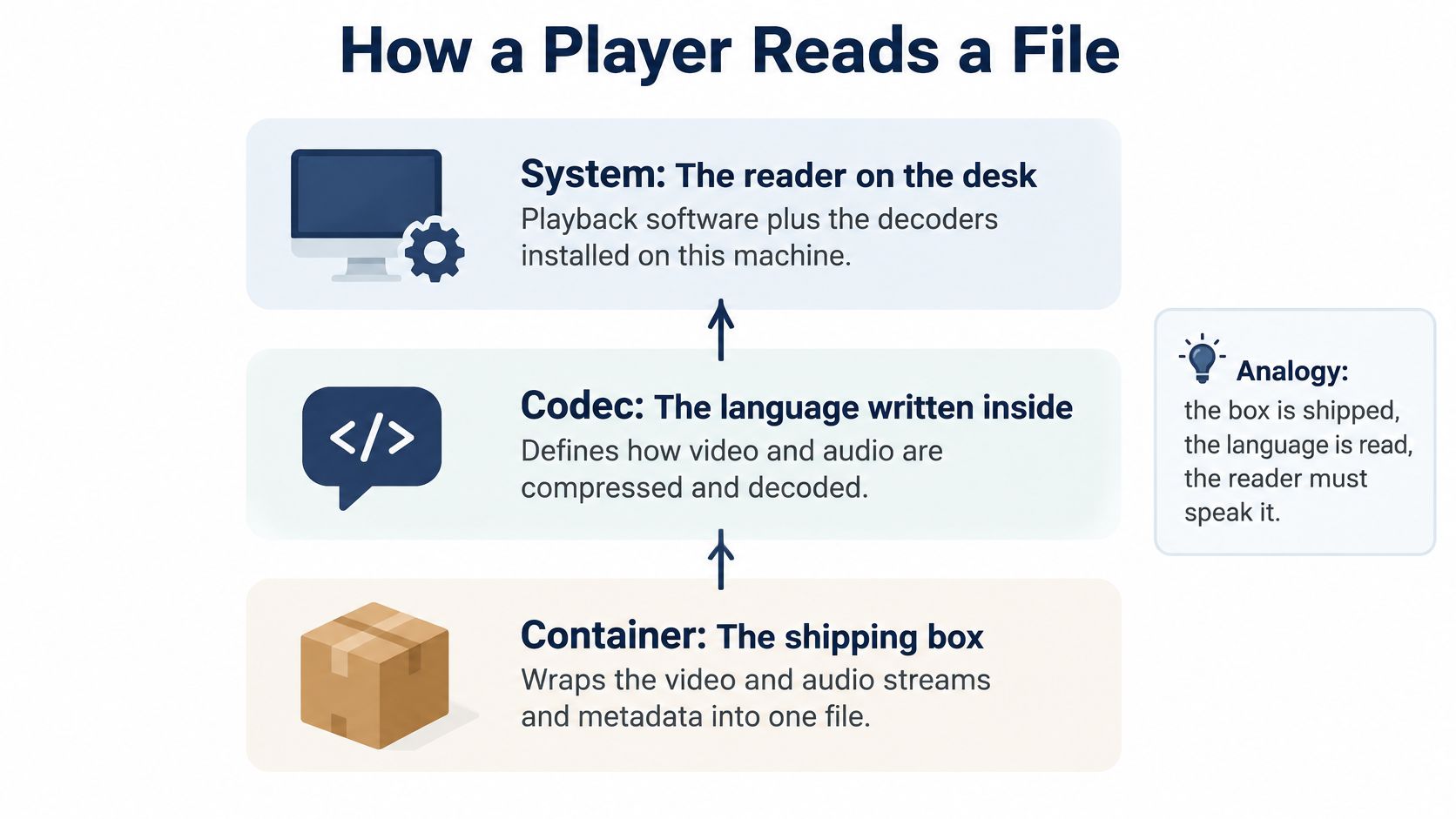
Two MP4 files can look identical in Finder or Explorer and behave completely differently. One holds H.264 video with AAC audio and plays anywhere. The other holds HEVC video, and a machine without an HEVC decoder shows a black frame or an error. The extension told you the box shape. It said nothing about the language inside.
What Cross Platform Testing Shows
Compatibility depends on the file format, the codec, and the operating systems involved, three separate variables. Change any one and your test result no longer applies.
When conversion is needed, Microsoft's current guidance gives a sensible baseline, MP4 video encoded with H.264 and AAC audio for supported presentations, as set out in Microsoft's PowerPoint video guidance. I would use that combination as the house format for anything that must move between machines. It's not the smallest or sharpest option. It's the one most likely to decode on a laptop you've never seen before.
A file extension tells you the container, not whether the machine can decode what is inside.
Say an AV technician receives a Windows made product video for a Mac presentation system at a roadshow. She doesn't trust the .mp4 ending. She copies the exact file to the Mac, plays it start to finish at show resolution, and checks the audio track routes to the room speakers. That ten minute test is the difference between confidence and a guess. Native multi-format playback reduces conversion work, but it never replaces validating the actual asset on the actual computer.
Keeping Playback Smooth Under Load
Hardware acceleration is not automatically faster. That's the assumption to drop first. An acceleration path only helps if the selected decoder supports the requested codec, and unsupported paths can silently provide no benefit, as the FFmpeg documentation makes clear for its platform specific decoders.
GPU decoding can also underperform software decoding on modern CPUs when decoded frames must be copied from GPU memory back into system memory. That copy costs memory bandwidth on every frame. If scaling, compositing, or colour conversion follows decoding, keeping frames on the GPU matters even more, because each unnecessary transfer adds overhead before the image reaches the screen.
Platform or hardware | Acceleration path | What to verify before relying on it |
|---|---|---|
Windows | DXVA2, D3D11VA | Driver version and codec support for the exact pixel format |
Linux | VAAPI | Driver stack, and whether frames stay on the GPU through scaling |
macOS | VideoToolbox | Codec support on the specific chip generation |
Intel systems | Quick Sync | Decoder support for the codec profile in use |
NVIDIA Systems | CUDA/NVDEC | Compatibility with the chosen decode path and display output |
How to Use the Table
Select acceleration through capability detection, then validate it per codec, pixel format, output surface, and display pipeline. Don't treat it as a universal on switch. A driver update the week before a show can change which profiles a Windows machine accelerates, so retest after updates, not before the audience arrives.
Check your show machine against the published minimum system requirements for your player before you commit it to 4K content. Minimum means it launches. For sustained high resolution playback you want headroom above that line, especially with HEVC or AV1.
Buffer Discipline Beats File Presence
Smooth transitions need measurable time based headroom, not just a file that exists. Preload the next item while the current one plays. Track buffer duration before each transition, particularly when media sits on network mounted or cloud synchronized folders that deliver uneven read speeds.
Log four things during rehearsal:
Startup delay: How long each item takes from cue to first frame
Buffer depletion: Any point where headroom falls toward zero mid-item
Decode errors: Files that open but produce artefacts or silence
Dropped frames: Visible stutter that a throughput number won't reveal
Measure end to end presentation, not decoder speed alone. Say a booth laptop plays a 4K loop smoothly on its own screen, then drops frames once it's plugged into a projector scaler. The output path may introduce additional scaling, conversion or processing overhead. Nothing about the file changed. The display pipeline did, and only a test with the actual display chain catches it.
Running Continuous Loops for Hours Unattended
A ten hour trade show loop rarely fails in hour one. It fails at hour seven, when a cloud synced folder re-syncs, one asset becomes temporarily unavailable, and the sequence stops on a black screen with nobody watching. Unattended playback is a reliability problem, not a playlist problem.
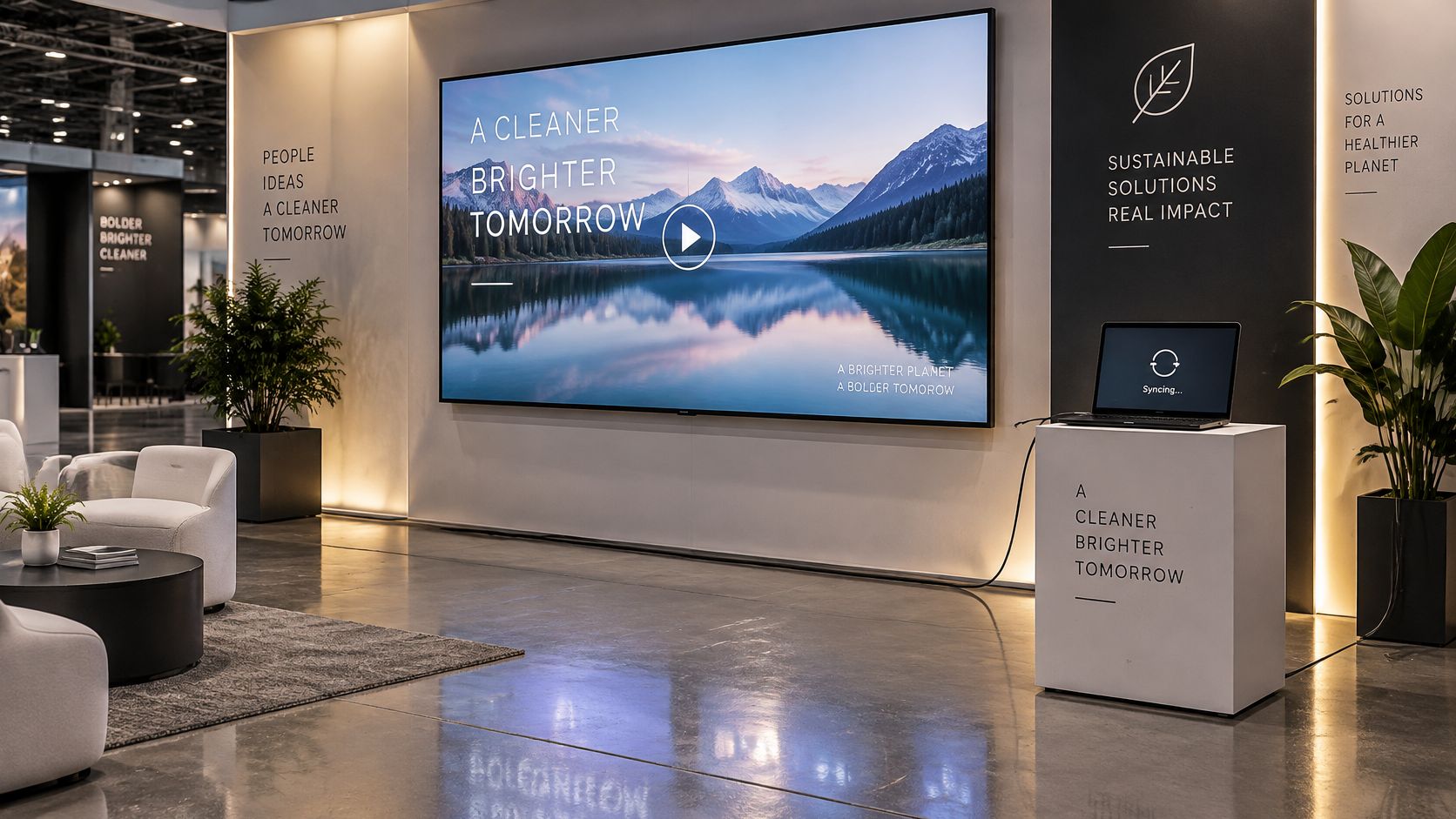
A file can exist and still be unusable. It may be partially synchronized, locked by the sync client, or too slow to deliver sustained reads from a network location. Your player and your process should separate missing assets from temporarily unavailable assets and report each clearly, because the fixes differ. A missing file needs replacing. A syncing file needs the sync finished or the folder frozen.
Local Files Beat Streams for Resilience
Cloud connected is not automatically more resilient. Streaming and synced setups add connectivity gaps, synchronization lag, and remote management complexity, each one a new failure mode. Local files on the playback machine remove the network from the critical path entirely.
Your booth loop deserves the same standard. Copy the show package locally, then turn off re-sync on that folder before doors open.
For a worked example of planning displays around opening time pressure, the guidance on trade show digital signage that works when doors open covers the deployment side of getting screens live before the first visitors arrive. The playback side still comes down to local assets and a tested fallback.
Backup Tiers for Playback
NIST distinguishes backup strategies by recovery speed and availability in its backup strategy guidance, and the tiers map cleanly onto playback.
Backup tier | How it works | Recovery speed | Best fit |
|---|---|---|---|
Hot | Real-time replication with immediate failover | Immediate | Retail signage that cannot show a gap |
Warm | Regularly updated copy ready to switch to | Quick, after switching | Multi-day trade show with a standby laptop |
Cold | Offline package restored from scratch | Full rebuild before playback | Event fallback on a USB drive or spare machine |
A retail signage operator who can't show a gap keeps a warm or hot copy locally available for continuity. An event team travelling light keeps a cold offline package on a USB drive, accepting a rebuild in exchange for zero network dependence. Both are valid. The wrong choice is having no copy at all and trusting the venue Wi-Fi.
Mixed hardware raises the stakes further. Booths often combine different generations of laptops and displays, so the loop that ran on Monday's machine may decode differently on the replacement shipped Wednesday. Keep the fallback copy in the house format, H.264 in MP4, so the spare machine needs no special decoding support.
Choose the tier by two numbers. How long does the loop run unattended, and how long can you tolerate a visible gap before someone notices and intervenes? A staffed booth tolerates a warm copy and a two minute switch. An unmanned corridor display overnight needs the copy that recovers without a person present.
How to Run a Preflight Check Before Every Show
Run this routine on the machine that will run the show, with the actual display attached. Each step exists because a specific failure keeps happening to teams that skip it.
Inventory every asset. Record each file with its path, size, and checksum. You can't spot a change later if you never recorded the original state.
Confirm container and codec for each file. Re-export mismatches to MP4 with H.264 video and AAC audio where conversion is needed. Checking the extension alone misses the codec inside.
Open every file on the target machine at show resolution. The editing laptop proves nothing about the show PC's decoders, fonts, or display chain.
Keep a second local copy of the whole package. Store its hashes beside it so you can verify the copy matches the original before you rely on it.
Verify checksums on the event machine and run a test restore. Possessing a copy doesn't prove it can be retrieved and used successfully.
Disconnect the primary media location. Launch the playlist from the fallback copy and confirm every asset opens in sequence with the network and sync client out of the picture.
Run the full loop for at least the longest planned duration. Log startup delay, dropped frames, and decode errors. A five minute spot check won't surface an hour seven failure.
Fix or replace anything that changed, became unreadable, or stalled. Do it now, while the fix is a file copy rather than an apology.
MediaGun checks that playlist files are accessible before Stage playback, but operators should still test actual playback to identify corrupted files, codec incompatibilities or performance issues.
Why Checksums Earn Their Place
NIST recommends verifying backup integrity using cryptographic hashes and conducting regular restoration tests. Cryptographic hashes help detect file changes, since even a one-bit modification produces a different hash. Keeping hashes for verification and regularly testing backups helps ensure that files can be recovered when needed.
A checksum turns "the file looks fine" into a yes or no answer you can get in seconds.
Say a trade show team reaches step 6 and the playlist stops at item nine. A sponsor renamed their video after sending the final cut, so the link points at a name that no longer exists. The team restores the correct file from the second copy, re-verifies the hash, and finishes preflight in ten minutes. Without step 6, that discovery happens during the keynote, in front of the sponsor.
Keep the routine short enough that people really run it. Eight steps on a printed card taped inside the laptop lid beats a forty page runbook nobody opens. For the wider set of things that go wrong on stage, the rundown of common multimedia presentation problems and how to solve them is worth working through with your operators once a season.
Note what the routine deliberately excludes. There's no step for testing on a machine back at the office, and no step that trusts a synced folder to behave during the show. Both feel efficient. Both are how hour seven failures get scheduled.
Choose Playback Software Before Your Next Show
Judge candidates against live work, not feature counts. I'd start with this checklist:
Native mixed format support: Video, audio, images, PDFs, and Office files without pre-conversion
Preview panel: Verify appearance and playback before an item joins the show sequence
Predictive validation: Flags missing, renamed, or moved files before showtime, not during
Drag and drop reordering: Absorb last minute agenda changes without rebuilding the show
Dedicated loop mode: Built for unattended displays running for hours
Cross platform parity: The same workflow on Windows, macOS, and Linux machines
Add the licence check. A one-time permanent licence and an ongoing subscription produce very different costs over three years of events. A fully functional trial matters too, because you need to test with your real, awkward files, not the vendor's demo assets.
MediaGun 2.0 is one option that fits this shape. It's a cross-platform application that plays mixed media in one uninterrupted playlist, and the publisher states it supports 50+ file formats within a single playlist, validates assets before showtime, offers continuous playback modes, and includes a 14-day fully functional trial. The publisher also reports playlist assembly up to 7 times faster than PowerPoint. Treat both figures as claims to verify against your own agenda and format list during the trial.
Match the verdict to the situation. A single laptop talk needs native formats and a preview above all. A multi-day booth or signage loop needs validation, loop modes, and local copies, because nobody will be standing there at hour seven.
Install the trial, load your real playlist, and run the full preflight routine on the machine that will run the show. The software that survives your worst files on your oldest laptop is the one to buy.
MediaGun Ltd builds playback software for exactly this kind of show day pressure, with mixed media playlists, native format handling, and asset validation designed for events, trade shows, and unattended displays. Visit MediaGun Ltd to start the fully functional trial and run your next preflight with your real files.

Comments