
.avif)
_edited.png)
A 12 Step Guide to Creating a Powerful Multimedia Presentation

Updated: May 15

Multimedia presentations are supposed to feel effortless: a smooth flow of visuals, documents, videos, and audio that supports a speaker’s narrative without drawing attention to the machinery underneath is necessary. In reality, that “machinery” is where most teams lose time and, often, confidence. The moment you go beyond a single slide deck and start mixing formats (PowerPoint + PDFs + spreadsheets + video + audio + images), you typically inherit a second job: assembly. Not “creating content,” but making the content behave by embedding, converting, relinking, re-exporting, testing, and hoping nothing breaks between rehearsal and showtime. This is exactly the problem a multimedia presentation software like MediaGun was designed to solve.
MediaGun doesn’t try to replace the tools that create content. It is a professional multi-format presentation platform that assembles and plays mixed-format playlists quickly and in full screen, without timelines. That focus changes how you build presentations: you spend your energy on the assets and the story, not on wrestling everything into a single fragile container.
In many real-world workflows, a significant amount of effort goes into assembling content into a runnable show. With MediaGun, that assembly work can shrink dramatically, turning show creation into a fast drag-and-drop step rather than a late-stage technical ordeal. And the true value of that shift is not speed for its own sake: it’s what you can do with the time you reclaim. You can refine and optimise assets to match what the context demands: your audience, your room, your screen, your timing, your narrative rhythm.
What follows is a step-by-step guide to the MediaGun-led approach to creating a powerful multimedia presentation: one that treats MediaGun not only as the final playback tool, but as something you test alongside asset creation to continuously validate the information flow.
Guide to Creating a Multimedia Presentation Using Multimedia Presentation Software.
Below is a structured approach to building a powerful multimedia presentation using multimedia presentation software. Each step focuses on helping you create a polished, audience experience with minimum friction.
1. Define the Outcome First Before Building a Multimedia Presentation
Before you open PowerPoint, Excel, Word, an audio-video editor, or a multimedia format presentation software like MediaGun itself, decide what success looks like.
Multimedia does not automatically improve communication; it simply increases the intensity of your choices. If the message is fuzzy, multimedia makes the fuzz louder.
Write one sentence:
After this presentation, my audience will understand and decide/feel .
That sentence becomes your filter. Every asset you include: an image, a chart, a video clip, a PDF page, should exist because it moves the audience toward that outcome.
2. Build a Story “Spine” You can Test as a Sequence, Not as a Deck
Multimedia presentation software helps structure presentations as connected audience experiences rather than static slide sequences. Supporting multiple media formats within a single workflow enables a more flexible and narrative-based approach to content delivery. MediaGun encourages “presentation as a sequence of moments,” not “presentation as a slide file.” That matters because the strongest multimedia experiences often need different media types for different jobs:
Images for instant emotional framing
PDFs for clean full-screen reference
Spreadsheets for authority and detail
Short video for demonstration and credibility
Simple text screens for section breaks and pacing
MediaGun is explicitly positioned for scenarios where a vast diversity of file formats must be assembled quickly and displayed immediately.
So sketch your narrative in scenes:
Hook → context → problem → solution → proof → action
You are essentially designing an information flow: what the audience sees, in what order, at what pace.
3. Decide How It Will Run (Manual vs Solo)
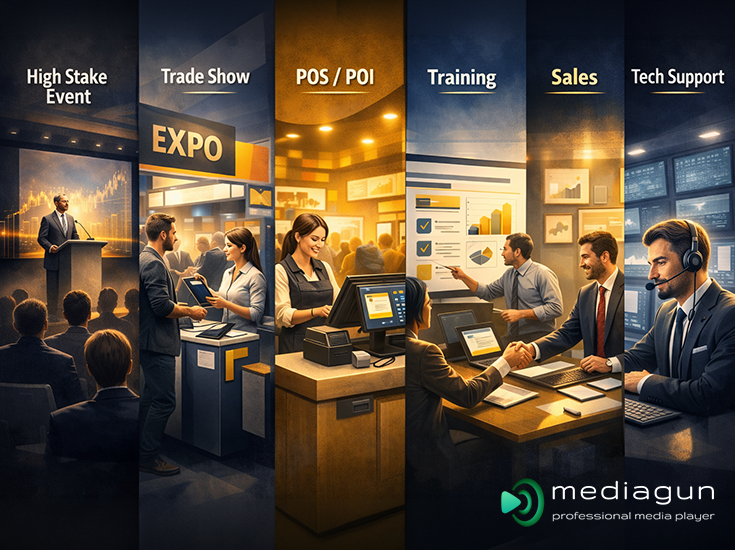
Choose Manual mode if your pacing is driven by what you are saying (you advance items yourself), and choose Solo mode if the presentation must run itself (trade-show loops, unattended screens). This decision matters early because it changes how you prepare assets.
In solo mode, MediaGun uses automatic timing logic by media type, and timed PowerPoint is best handled as a user-exported MP4 so its timings/animations are preserved.
4. Create Assets in the Best Native Tools
Content is most effective when it clearly separates creation from presentation, allowing each stage of the workflow to stay focused and efficient. Modern digital workflows increasingly rely on specialised tools working together rather than a single platform doing everything. This is the cleanest way to place MediaGun at the centre without pretending it does what it doesn’t, which means it does not create content. It renders and displays existing files: documents, spreadsheets, presentations, images, audio, video, PDFs, and more.
This means you can author content in the original apps (PowerPoint, Word, Excel, image/video editors), then add those files to a MediaGun playlist for seamless playback.
That’s not a compromise; it’s a production advantage. It means you can keep the right tool for each job, which sometimes took months or years to master, while MediaGun becomes the “show layer” that unites them.
5. Prototype the Show Early: Test the Information Flow While You’re Still Creating
Early testing of narrative flow allows presenters to identify timing issues, refine transitions, and improve the overall information rhythm before final delivery. This is one of the most important workflow changes multimedia presentation software like MediaGun enables.
Traditional mixed-media production often postpones “show assembly” until the end. You finish assets, then you stitch them together once, discover timing problems late, and scramble. MediaGun makes that habit unnecessary. Its operating model is built around two windows:
Backstage: Where you view media, create and save playlists, set playlist-level presentation settings, attach music tracks, and run checks.
Stage: Here you can display a full-screen presentation for your audience. Because playlists can be saved and reloaded quickly, you can drop in early drafts such as rough-cut video, early chart export, placeholder PDFs, and run the sequence on Stage to test whether the narrative rhythm works.
That means MediaGun can be tested alongside asset creation, not only at the end of production. You are not just checking that the files play. You’re checking the information flow: whether the proof arrives at the right moment, whether the demo clip feels too long, whether switching from designed slides to a spreadsheet is persuasive or jarring.
And that directly supports your time-ratio point: when “assembly” becomes almost trivial, you can iterate more often; and iteration is how presentations become sharp.
6. Build Your Playlist in Backstage, Where Assembly Becomes Design, Not a Technical Task.
Multimedia presentations often break down when teams rely on traditional slide-based tools that weren’t designed for complex, mixed-media workflows. This usually turns content assembly into a slow, technical bottleneck instead of a creative process.
MediaGun is built for fast assembly of content. In fact, the documentation explicitly contrasts the effort of inserting external media into PowerPoint versus MediaGun’s drag-and-drop model, and includes a seven times faster than PowerPoint speed claim in this context.
This matters because fast assembly doesn’t just save minutes; it changes how you think. Instead of treating your first assembled version as precious, you treat it as a prototype that can be reshaped in seconds.
MediaGun playlists can reference files from multiple folders and locations, including shortcuts/aliases, and validate referenced files regardless of origin. That makes it easier to build a coherent show without forcing your underlying file storage into a rigid hierarchy.
7. Let MediaGun Enforce Reliability: Validation & the “No Surprises on Stage” Philosophy
Powerful multimedia presentation software must also be reliable. It should help presenters run a presentation smoothly from start to finish, ensuring the audience experiences the content exactly as intended.
MediaGun’s comparative advantage here is not subtle: it’s designed around preventive validation. Stage access is blocked when items are missing from the playlist, and the Run button remains disabled until all files are marked as present. The design philosophy is explicitly described as a “no surprises on stage” policy: preventive validation, visible status indicators, and controlled stage access only after full verification.
All in all, MediaGun will play what you give it, but playback performance is ultimately the presenter's responsibility (assets + machine + setup). Optimise for the target screen (avoid oversized/high-DPI images and uncompressed video) and don’t run unnecessary apps during playback.
Practically, that means the “it worked yesterday” nightmare is far less likely. You find issues while producing, not while presenting.
8. Optimise Assets for Top Performance
A multimedia presentation fails when assets are built for the wrong environment, especially images and videos.
MediaGun’s performance guidance is a good reminder of a universal rule: avoid using images larger than your screen resolution; uncompressed images with a DPI higher than ~150 can take longer to appear without improving on-screen quality. The suggested remedy is practical: prepare images at screen resolution (for example, 1920×1080) and at a screen-appropriate definition (72–96 DPI) Uncompressed videos are good for archiving (and MediaGun plays them), but not for live presentations. Choose .mp4 or .webm, for example.
This is exactly where multiformat presentation software helps reclaim assembly time and improve quality. If you’re not spending hours embedding and re-exporting, you can spend that time refining the assets so they load instantly and read cleanly.
9. Make PowerPoint & MediaGun Work Together (Especially Around Timed Playback)
When MediaGun displays MS-Office files online, it does so by uploading and processing them through Microsoft SharePoint’s viewer so they can be played consistently across operating systems. For PowerPoint specifically, this has an important consequence: timed/self-running presentations are no longer supported on SharePoint, because Microsoft removed that capability in 2024. The practical workaround is as follows:
Design and animate in PowerPoint
Rehearse timings if needed
Export to MP4 for timed playback contexts,
Put that MP4 into your MediaGun playlist alongside your PDFs, spreadsheets, and other assets.
That way, you keep PowerPoint for authored slides and MediaGun for mixed-format flow.
10. Add Polish at the Playlist Level: Transitions, Branded TXT Screens, Music, and Branding
Multimedia presentation software assembles different media elements into one presentation and allows different presenting styles. MediaGun intentionally keeps presentation styling at the playlist, not item–level.
Transitions: MediaGun provides 15 transition effects, with one transition per playlist. This yields consistency: you set a single transition “feel” per playlist and let it carry the show.
Music track: A music track can be attached to a single item or a range; tracks loop until the last assigned item finishes. This is particularly useful for trade shows and kiosks, where silence feels dead and continuity matters.
Branding window: MediaGun also supports displaying branding details, venue, date, and event name in Stop mode via a branding window.
TXT styles: TXT styling is also one per playlist, with a practical font fallback (Arial if fonts are missing). What’s more interesting is the branding angle: TXT files normally offer one font/size/style on white. But MediaGun allows you to set font colour, background colour, and a background image, appropriate for your brand.
This is ideal for section breaks, agenda cards, instructions, and interstitial breathing space screens that keep the show coherent without building extra slides.
11. Rehearse Like an Editor: Run the Playlist, Then Tighten the Sequence
Once ready, rehearse the show as a sequence of assets, not as a deck of slides. Look for the moments where the audience’s attention will drift:
A chart that needs a clearer headline
A video clip that should be half as long
A PDF page that is too dense for the room
A transition from “designed slide” to “raw spreadsheet” that needs an interstitial TXT screen to reset context.
Because playlists are quick to edit and reload, you can iterate repeatedly during production, again reinforcing the core idea. Here, MediaGun enables continuous flow testing, not just end-stage assembly.
12. Present With Confidence: The Show You Tested Is the Show You Run
The audience never thanks you for the number of file formats you supported. They thank you for the clarity and control made possible by the multimedia presentation software.
MediaGun’s combination of fast assembly, playlist-first flow, and “no surprises on Stage” validation model helps you walk in knowing that the show you tested is the show you’re about to run. And when you’re not worried about the machine, you’re free to focus on the human part: pacing, emphasis, and connection.
Closing: Why MediaGun Improves Quality, Not Just Speed
Multimedia presentation software is increasingly designed to reduce the friction of working with diverse content formats, making it easier to assemble complete presentations quickly.
This shift allows users to focus less on technical setup and more on refining the narrative flow and improving the overall audience experience. MediaGun is often introduced as a speed tool, putting together diverse formats in seconds, seven times faster than PowerPoint for a certain external-file setup challenge. But the deeper impact is quality through iteration: when assembly becomes nearly frictionless, you can afford to refine assets, test the narrative flow early and often, and tailor the presentation to the context until it feels perfectly suited to the room and audience.
That is the real promise behind your ratio shift. Less time assembling. More time optimising. More time making the audience’s experience seamless. In a nutshell, when the workflow becomes smoother, presentations stop feeling like technical productions and start feeling like intentional audience experiences.
See how MediaGun helps turn presentation assembly into a faster, smoother, and more audience-focused experience. Get started with a free MediaGun trial and note the difference.
FAQs
1. How does playlist-based presentation improve workflow?
A playlist-based approach makes it easier to organise, reorder, and refine presentation flow without constantly rebuilding a slide deck.
2. Can multimedia presentation software help reduce presentation errors?
Of course. In multimedia presentation software like MediaGun, features such as file validation and playback checks help identify missing or problematic assets before the presentation goes live.
3. Why is early testing important in multimedia presentations?
Testing the presentation flow early helps presenters refine pacing, timing, and audience experience before final delivery.

Comments